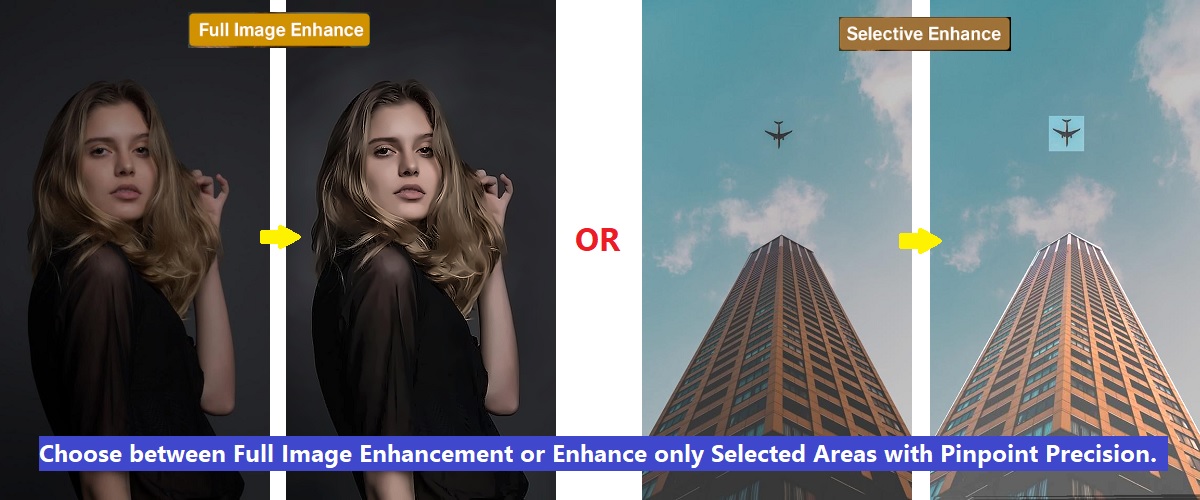
 Full Image
Full Image Enhancement
Apply lighting, color, sharpness, clarity, quality and other improvements to the entire image at once.
Enhance the Full Image
Enhance image quality, improve lighting and colors, sharpen details, reduce noise, crop photos, add frames, and edit selected areas with PHIEN Image - all online and easy to use.
Improve the entire photo in one step, or select a specific area when you need more precise control over the final result.
Full Image
Apply lighting, color, sharpness, clarity, quality and other improvements to the entire image at once.
Enhance the Full Image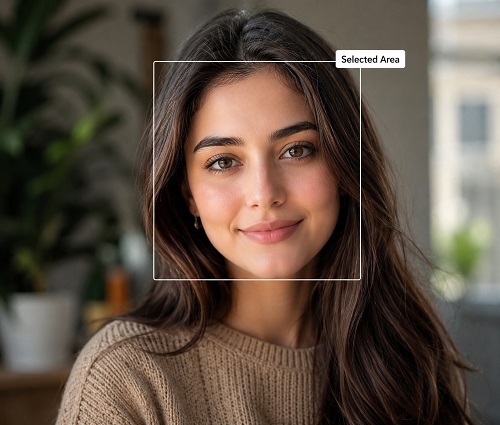 Selected Area
Select a rectangular or polygon-shaped area and apply adjustments only where they are needed.
Enhance a Selected AreaImprove image brightness, contrast, colors, clarity, and overall appearance using easy-to-use enhancement and editing features available in PHIEN Image.
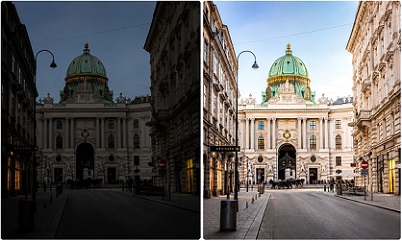
Enhance the brightness and radiance of your images with flexible AI Image Brightness feature. Brighten dark photos, improve luminosity, and recover visible details using manual brightness controls or the Auto Brightness feature.
Explore Brightness Features
Adjust the difference between light and dark areas to improve image depth, definition, and overall visual balance for high contrast pictures.
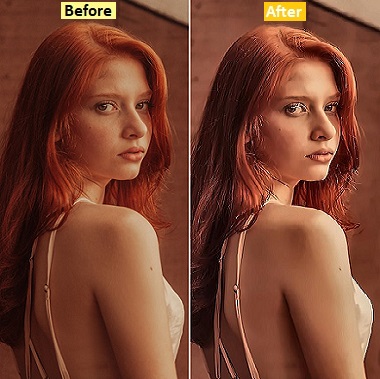
Automatically enhance an image by improving dark, dull, noisy, or low-quality images. Improve lighting, colors, contrast, and visible details.
Improve or adjust image color richness, change color intensity, create black-and-white images, or add color to selected parts of a photo.
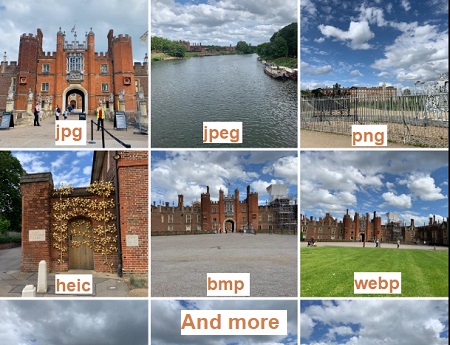
Convert images between supported formats such as JPG, JPEG, PNG, WebP, BMP, TIFF, ICO and HEIC.
Format Conversion Steps
Add frames, borders, outlines, and shadow effects with Free Photo Frame Maker Online. Create framed images for social media, greetings, presentations, and printing.
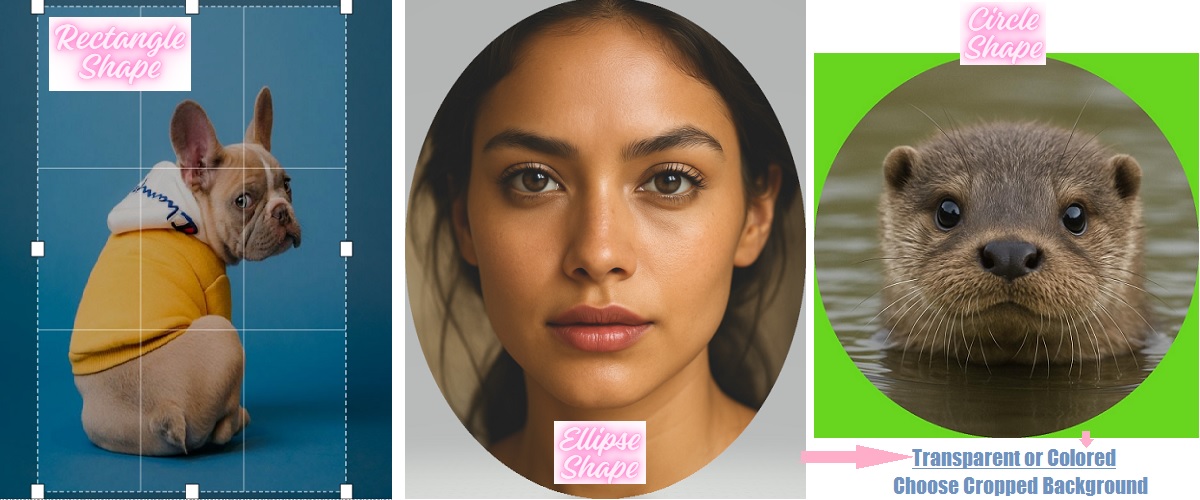
Crop, trim, rotate, and straighten images using adjustable selections, preset sizes, and aspect ratios. Choose a rectangle, circle, or ellipse depending on the result you want to create.
Use additional image enhancing and editing controls to prepare, customize, and export your photos without switching between multiple tools.
Learn more about PHIEN Image enhancement and editing features, including background removal and replacement, image resizing and compression, edge detection, pencil sketches, drawings, paintings, blur effects, and more.
Resize, compress, blur, transform, and customize your images using more free image enhancing and editing tools available across PHIEN Image.
Prepare images for websites, social media, printing, presentations, and everyday use.

Resize images by pixels, percentage, physical dimensions, or preset sizes for online, social media and print use.

Reduce image file size while maintaining a useful balance between visual quality and compression.

Remove Background - Remove an image background or blur it with adjustable intensity and opacity controls.

Replace an existing image background with a color, gradient, pattern, template, or your own image.

Flip, rotate, or mirror an image to correct its orientation or create a different visual composition.
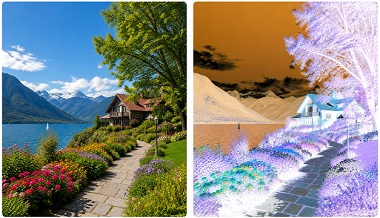
Create striking visual effects with just a click by inverting pictures.
Transform ordinary photos into sketches, drawings, paintings, and modern artistic styles.

Apply ready-to-use artistic styles to turn your photos into pencil drawings, colorful sketches, painted artwork, ink effects, and modern digital art.
Detect image edges, contour, add dimensional effects, blur specific areas, and apply creative image filters.
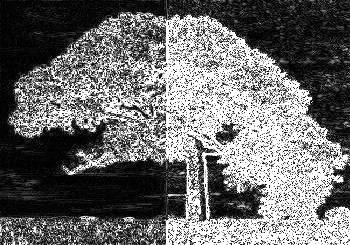
Identify image boundaries, highlight object outlines, and define shapes and fine details using edge and contour detection.
Detect Image Edges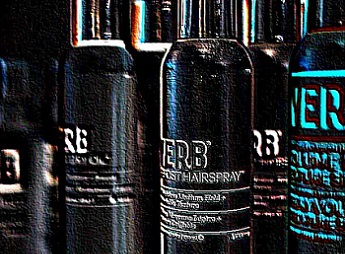
Create a raised, three-dimensional appearance by adding highlights and shadows to image structures, objects, and details.
Apply Emboss Effect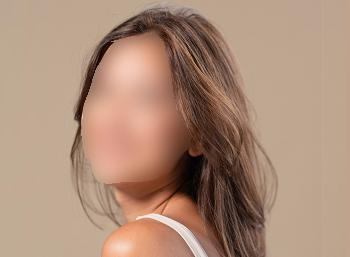
Blur an entire image or select a face, object, background, or another specific area to blur.
Blur an Image
Apply ready-to-use filters and effects to adjust color, lighting, shadows, highlights, mood, sepia and the overall visual style of an image.
Explore Image EffectsView the complete collection of image enhancement, editing, conversion, artistic, background, edges and creative free online tools available across PHIEN Image.
Ans. To enhance the entire image, follow these steps:
Ans. To enhance a selected part of the image, follow these steps:
Ans. All features can be applied to full image enhancement.
Note: Now, All enhancements on this page are applied sequentially - meaning each feature or enhancement applies on top of the previous one. This helps you layer effects smartly and achieve more refined and professional results.
Ans. To crop images with PHIEN Image, follow these steps:
Ans. These shapes provide more control and flexibility for cropping and editing an image:
Note: For transparent backgrounds, download the image in "PNG" format directly after cropping.
Ans. You can add frames, boundaries and outlines to images on PHIEN Image for free using the Frames tool. Just follow these steps:
Ans. Yes. You can create custom personalized picture frames by choosing a frame style and adjusting settings like color, opacity, thickness, corner radius, and distance from the image corners to match your photo or theme (birthday, events, social posts, etc.). You can also apply mutliple frames on your photo without any limits to create a stacked frame look.
Your support will help us in maintaining and further developing this tool with more useful free image enhancement eatures and keeping it as a fast, secure and reliable platform. Thank you for being a part of our journey! 😊
For other general questions or queries about this tool, like:
Visit FAQ page or click on the button below: